
 OpenMV
 Shields
 Lens
Lens Robotics
 Book
Book Video
Video Download
 Docs
Docs Forum
Forum OpenMV.io
 GithubOpenMVShieldsLensRoboticsBookVideoDownloadDocsForumOpenMV.ioGithub
OpenMV Self-Training Neural Network for Target Point Detection – Traffic Sign Recognition in Real-Road Environments
Artificial intelligence has two very common tasks in the field of vision: classification and object detection.
Category:Determine which category the image belongs to, for example, whether it is a cat or a dog.
Object Detection:Used to locate the positions, quantities, and dimensions of multiple distinct objects in an image.
In the previous video tutorial we explained how to use the OpenMV4 Plus to train neural networks online for classifying different objects. It can determine in real time whether an image within the OpenMV field of view corresponds to a specific object—for example, whether a face is wearing a mask—but it cannot output the coordinates of faces or masks, nor the number of faces.
Target detection is significantly more complex and computationally intensive than classification, making it rare in the microcontroller domain. The main control MCU of OpenMV is the STM32H7. We have now added a new feature to OpenMV that enables target detection–like tasks to run on microcontrollers, delivering outstanding performance.
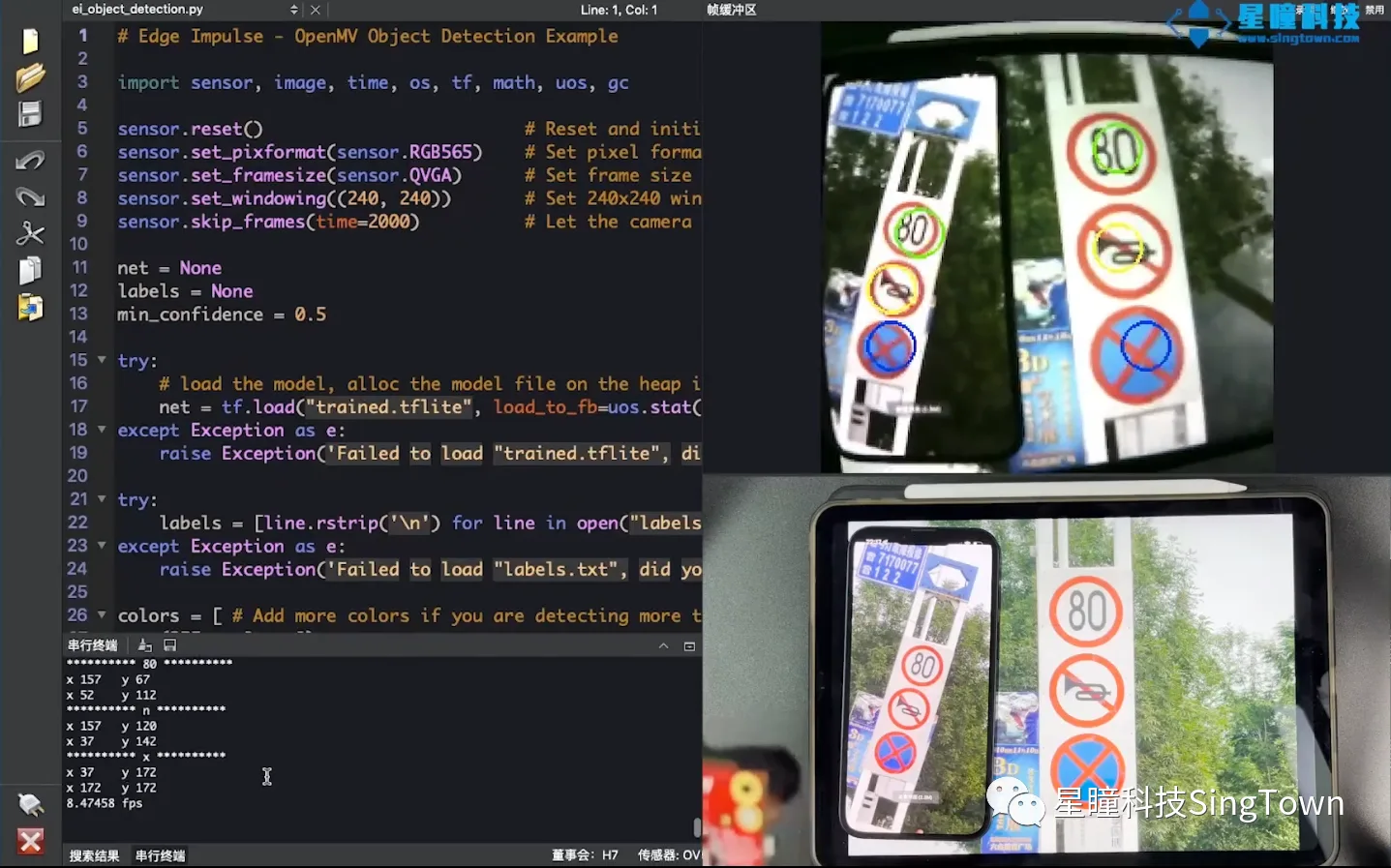
Today we will explain to youTraining demonstrates traffic sign detection in real-road environments detecting traffic signs on our actual roadssuch as no honking, no parking, and speed limit of 80 km/h, rather than a laboratory interference-free environment.
You can view the entire project content, including all code and models, at the following address: https://book.openmv.cc/project/traffic-sign.html
It is well known that real-world environments are highly complex—especially road environments—with numerous sources of interference. We captured images of traffic signs in real-world environments using devices such as smartphones and trained the model on EdgeImpulse, the online platform of our OpenMV partner. Approximately 270 images were annotated, and model training required only ten minutes. The resulting model achieved an F1 score accuracy of 92% and ran at a frame rate of 10 frames per second on OpenMV, delivering both smooth performance and high accuracy.
Users can train detection models for any target of interest using our video tutorials—for example, different digits, various fruits, distinct markers, diverse components, or even any specific irregular object—and obtain the count, coordinates, and category name of each detected object.
Note:This video tutorial covers the neural network keypoint detection feature, which is compatible not only with the OpenMV4 H7 Plus but also with the OpenMV4 H7. The trained FOMO keypoint detection model is compact, delivers excellent performance, and occupies only dozens of kilobytes. Even though the OpenMV4 H7 has less RAM than the Plus version, we can train a slightly smaller model to run on the OpenMV4.
Below is a brief introduction to the principle:
The primary design decision behind FOMO object detection on OpenMV is based on the idea that many object detection tasks do not actually require the size of objects but only their positions within the image. Once the positions of objects are known, subsequent operations can be performed—for example, OpenMV controlling a vehicle to move toward the detected target, enabling a drone to land at a designated location, or controlling a robotic arm to grasp a specific target object.
The FOMO model is a model specially designed by EdgeImpulse for microcontroller environments; unlike conventional object detection, it can only detect the positions and quantities of multiple objects, but cannot obtain their specific dimensions.
The underlying principle of the FOMO model is extremely simple and flexible. It first divides an image into patches, each measuring 8×8 pixels. For an image with a resolution of 96×96, this results in a 12×12 grid of cells; for an image with a resolution of 360×360, it yields a 40×40 grid of cells. Then, image classification is performed independently on each cell.
Compared to YOLO V5 or MobileNet SSD, FOMO performs significantly better on a large number of small objects. FOMO object point detection is 30 times faster than MobileNet SSD.
FOMO delivers better performance when the objects to be detected are of similar sizes—for instance, when the signage to be identified is approximately uniform in size, rather than comprising both extremely large and extremely small objects.
OpenMV uses EdgeImpulse to train neural network object detection models online, which mainly consists of the following steps: collecting and uploading image datasets, labeling objects, training, testing the model, and deployment.
* Collection of image datasets: Capture images of specific objects in the actual environments where they need to be identified. Images are collected in the same environments where identification will take place, ensuring that the actual training environment closely matches the actual detection environment, thereby achieving better results.
* Annotation Target: Draw bounding boxes around each object to be detected in our dataset and associate each box with the corresponding object name to facilitate subsequent training for object localization and classification.
* Training the model: After annotation is completed, train the model using the convolutional neural network parameters designed by us.
* Test model: We conduct tests using the trained model. If the performance is unsatisfactory, we correspondingly expand the training dataset or adjust the training parameters and continue training until an acceptable model is obtained.
* Deployment: We can run the trained model file directly from the built-in USB drive of the OpenMV.
Below is a demonstration of the specific procedure:
01. Collect and upload the image dataset
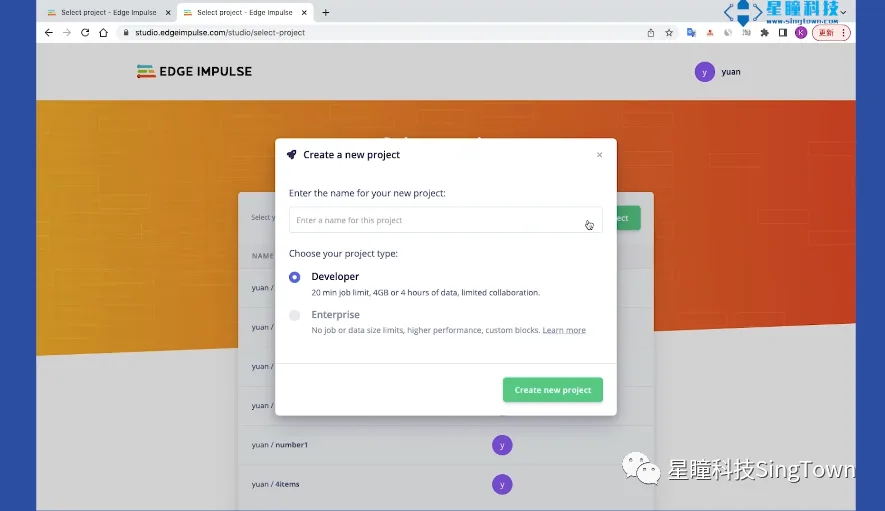
1. First, log in to the website edgeimpulse.com, select “Log In”, enter the name of the newly created project, and select “Images” → “Classify multiple objects”
II. Select an image to upload. There are several ways to obtain the image dataset:
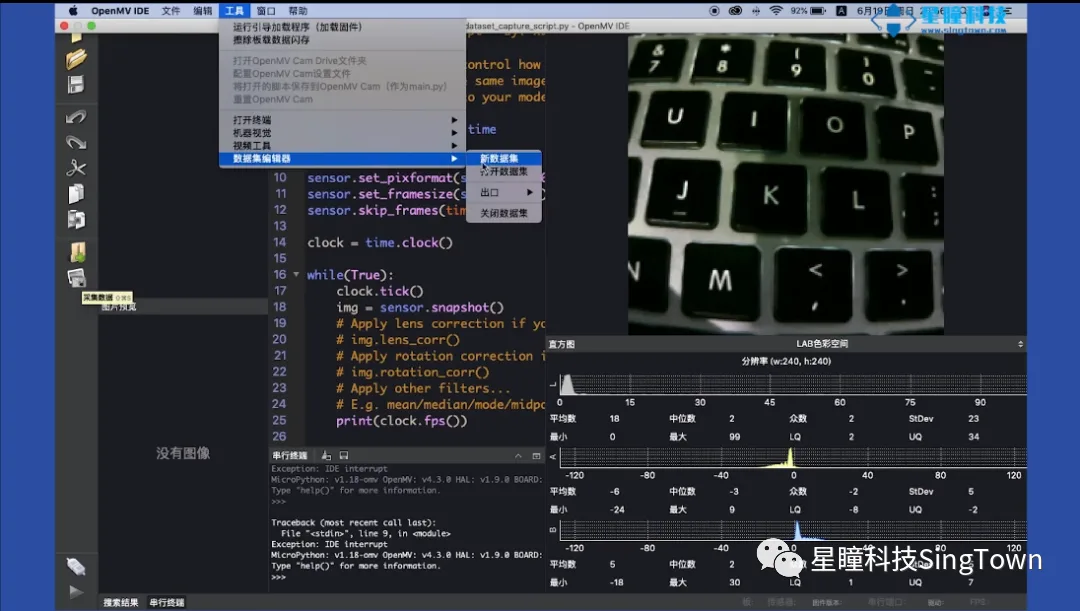
1. Capture images in real time using the OpenMV IDE. Use the “Dataset Editor” tool in the OpenMV IDE to create a new dataset and capture images in real time; for details, refer to our previous video tutorial on object classification and mask detection.
2. Images downloaded from the internet or captured using a mobile phone; preferably matching your actual detection environment. We have prepared four to five hundred images of traffic signs, including No Parking, No Honking, and Speed Limit 80 km/h, all collected from real roads. This dataset is available for download on our GitHub repository and tutorial website.
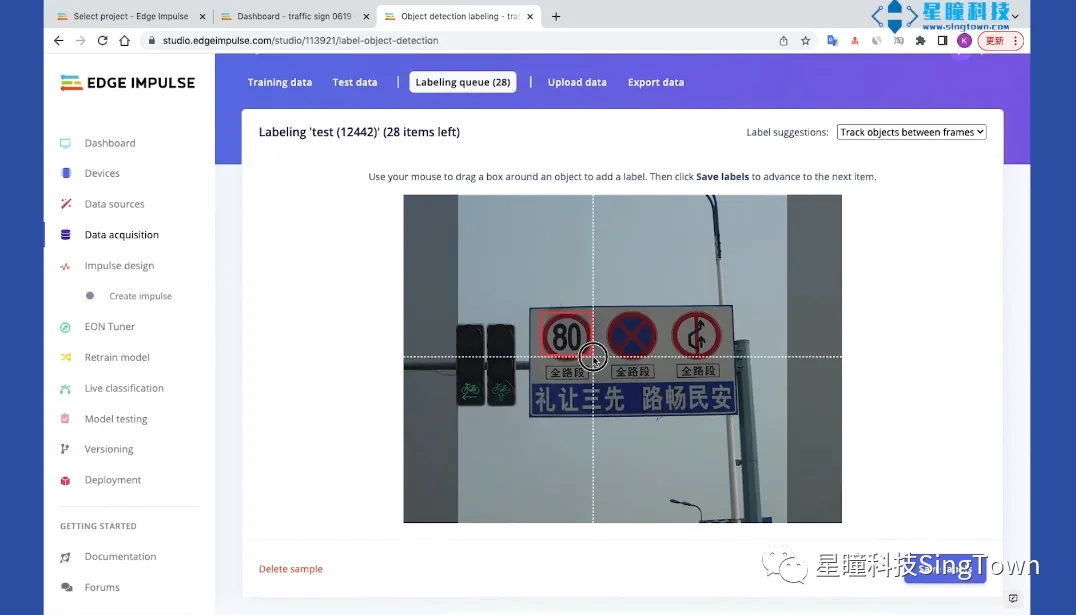
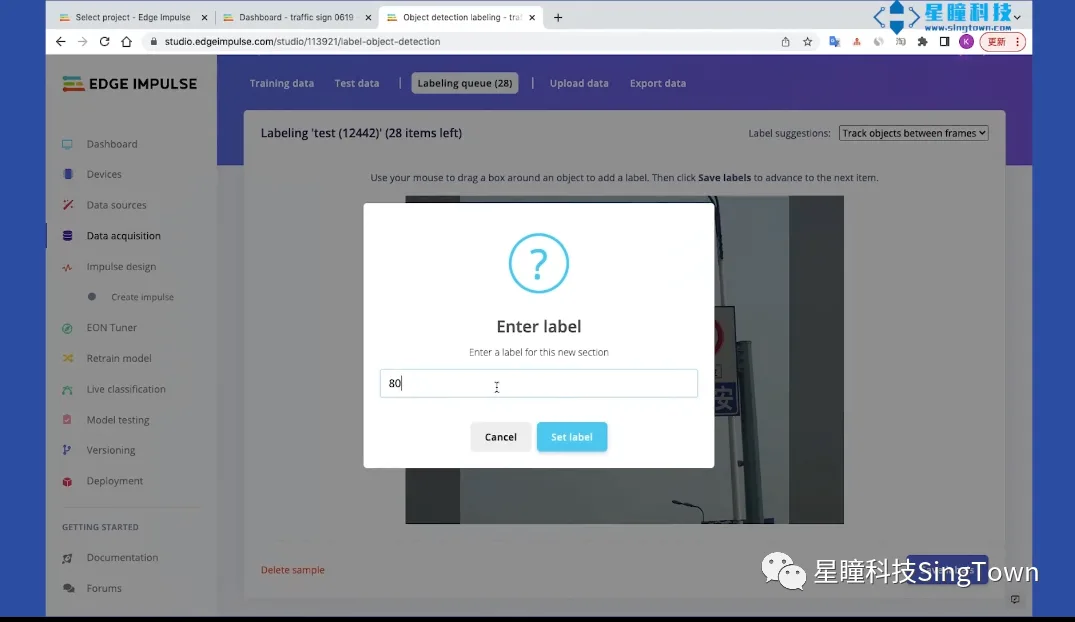
02. Target Annotation
Approximately 100 images are uploaded for each category; after the images are uploaded, image annotation must be performed to mark the positions and categories of the objects to be identified.
03. Training the Model
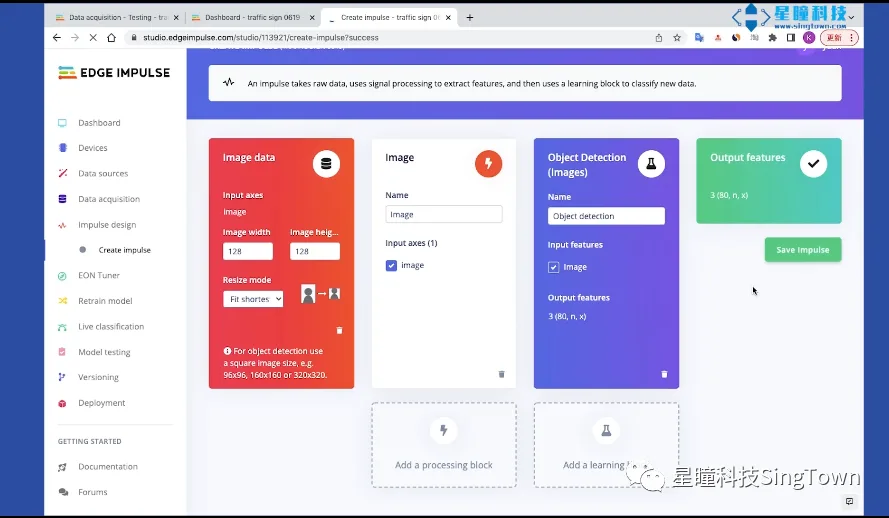
Configure the training parameters, change the resolution to 128×128, and select all default parameter settings; then click Save.
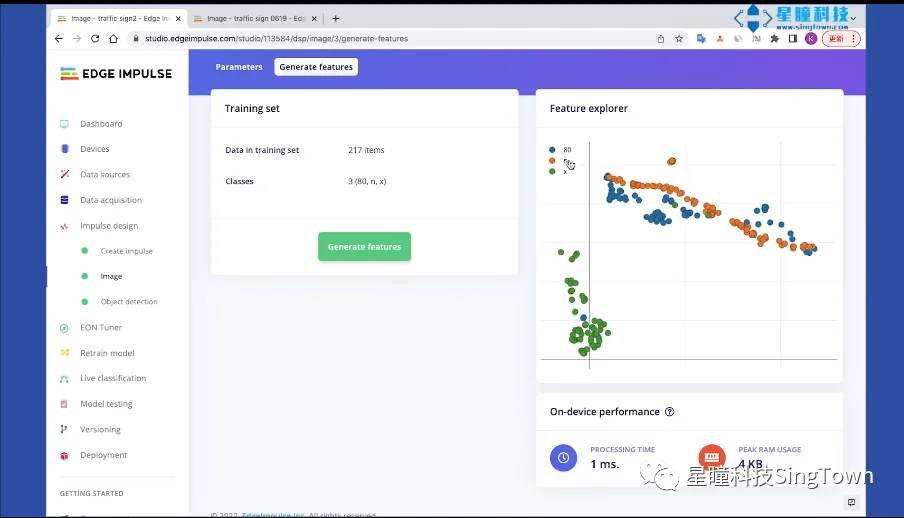
Generate features where three colors represent three distinct markers.
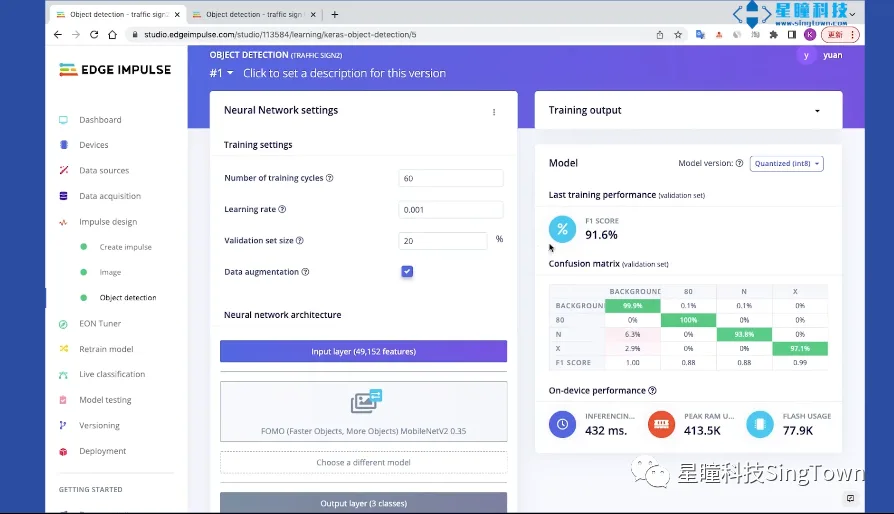
Configure the target detection training parameters. The default number of training epochs is 60, the learning rate is 0.001, and the validation set proportion is 20%. Enable data augmentation. For transfer learning models, select either the default MobileNetV2 0.35 or MobileNetV2 0.1. (Note: SSD cannot be used, as it is not supported on OpenMV.)
Select Start Training. The neural network model obtained after training has an F1 Score of 91.2%, and we can save the current version.
Select storage, enter your description, and select Save.
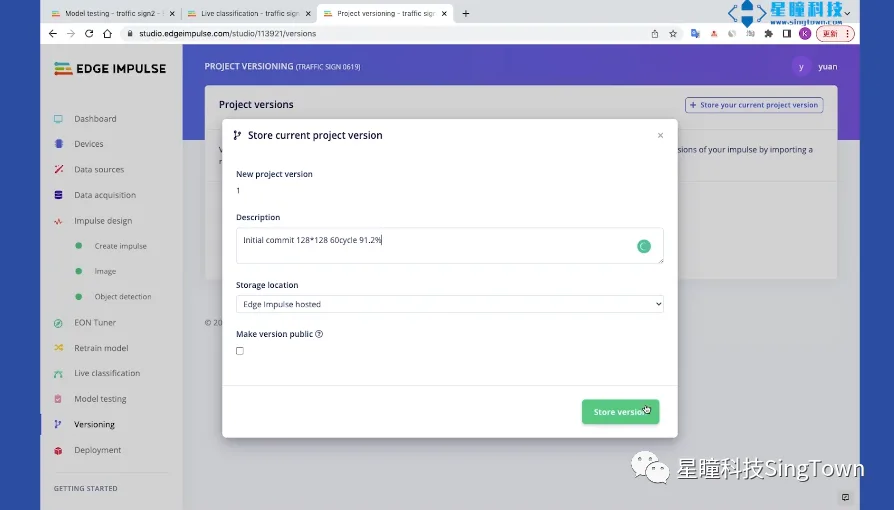
04. Deploying the Model
Export the trained model file. Only the library needs to be exported; select OpenMV and click Build to start deploying and exporting the model.
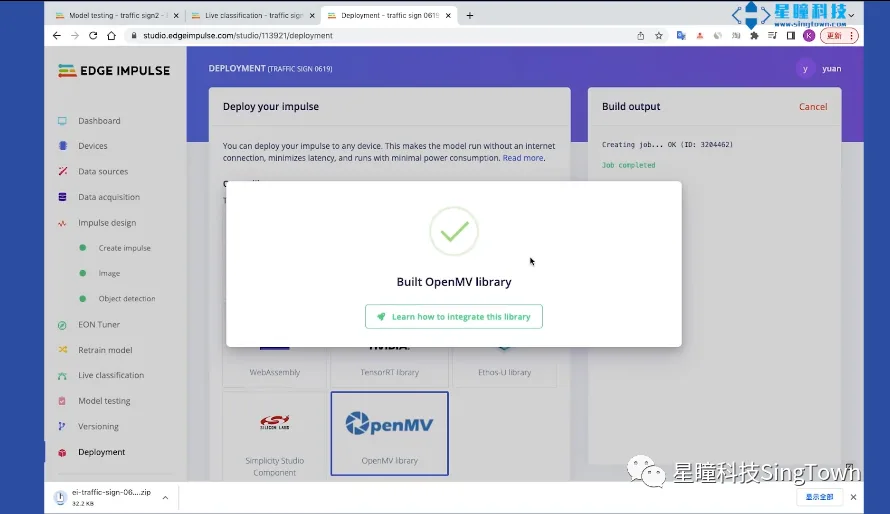
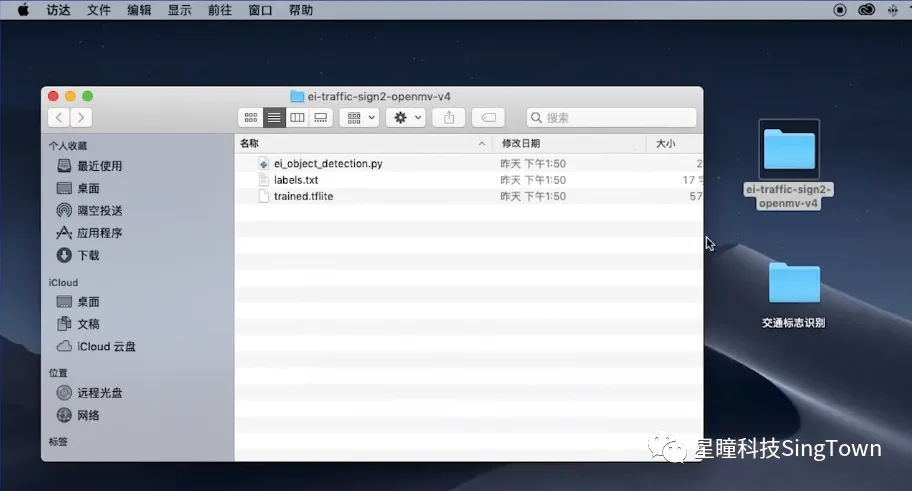
It will automatically download the exported model, which in this case is the model trained on our 300 images, thus completing the entire training process.
05. Running the Model
Running the model on OpenMV:
Connect OpenMV Plus, save the three trained files to the built-in USB drive of OpenMV, and open the ei_object_detection.py file in OpenMV IDE. Click Run, and the results will be displayed in the serial terminal.
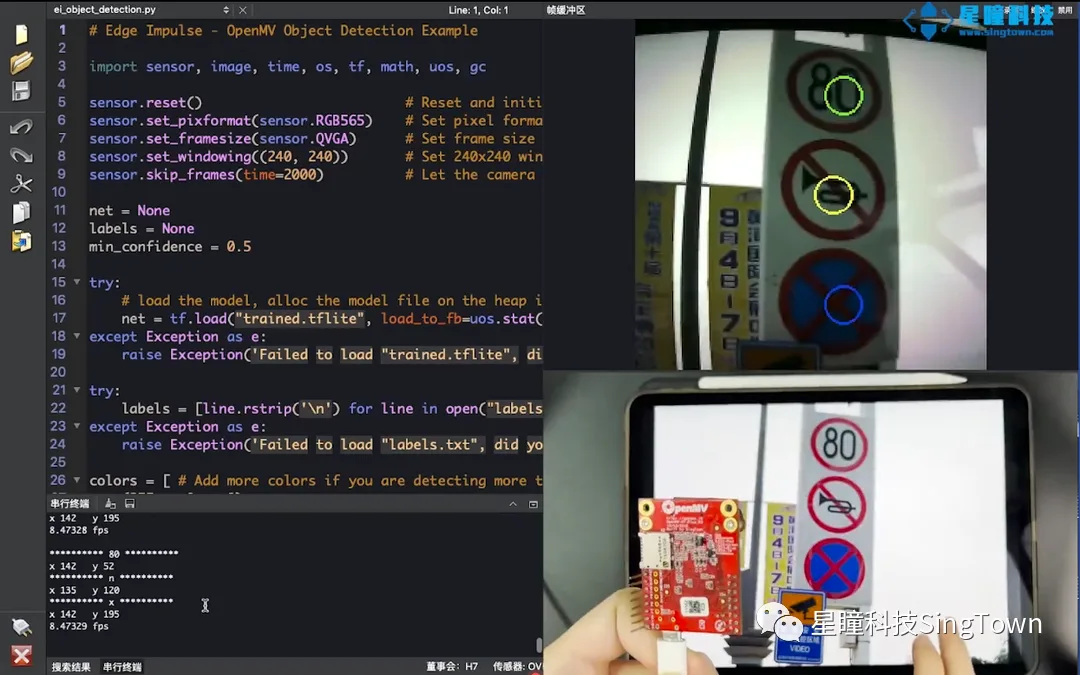
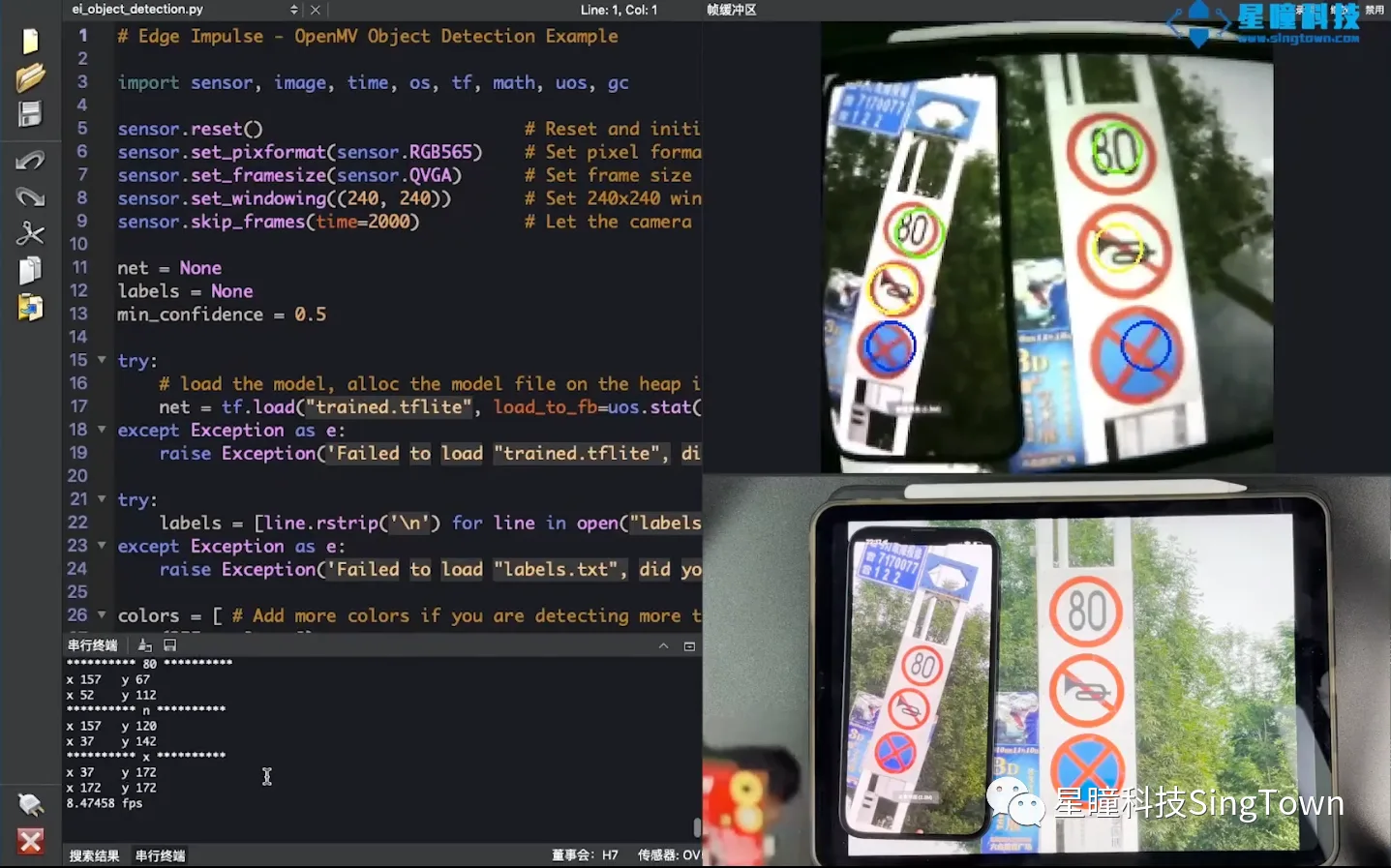
This feature is also compatible with the OpenMV4. As the OpenMV4 does not have external SDRAM and has less memory, we can reduce the model size to enable its operation on the OpenMV4.
There are two methods to reduce the model size:
1. Reduce the training resolution from 128×128 to 96×96.
II. Modify the migration learning model used, changing MobileNetV2 0.35 to MobileNetV2 0.1.
Finally, place the trained new file into the OpenMV4 and run it.
The above is our target point detection tutorial. We look forward to your results!
Related articles

AI Sentinel Based on OpenMV: Automatic Alert for Unlocked Key Locations
Automatically determines whether the door of a key location has remained open for an extended period and issues a timely alert.

Personnel crossing the boundary triggers an alarm; OpenMV interprets the “sense of security boundary”
Detecting personnel or equipment crossing virtual perimeter lines.

“AI Urban Management” is here—an automatic street vending detection system built on OpenMV
Automatically identifies illegal street vending activities to support daily urban governance.

Improper placement of gas cylinders? Use OpenMV to automatically trigger hazard alerts
Automatically identifies non-compliant placement positions of gas cylinders to detect potential gas safety hazards in advance.

Did you perform live-line work without wearing insulating gloves? OpenMV will immediately issue an alert!
Automatically identifies whether workers are wearing insulating gloves to assist in safe operations.

Real-time detection of surface defects on aluminum plates using the OpenMV smart camera
Online identification of defects on aluminum plate surfaces, such as scratches and dents, to support quality control.
