
 OpenMV
 Shields
 Lens
Lens Robotics
 Book
Book Video
Video Download
 Docs
Docs Forum
Forum OpenMV.io
 GithubOpenMVShieldsLensRoboticsBookVideoDownloadDocsForumOpenMV.ioGithub
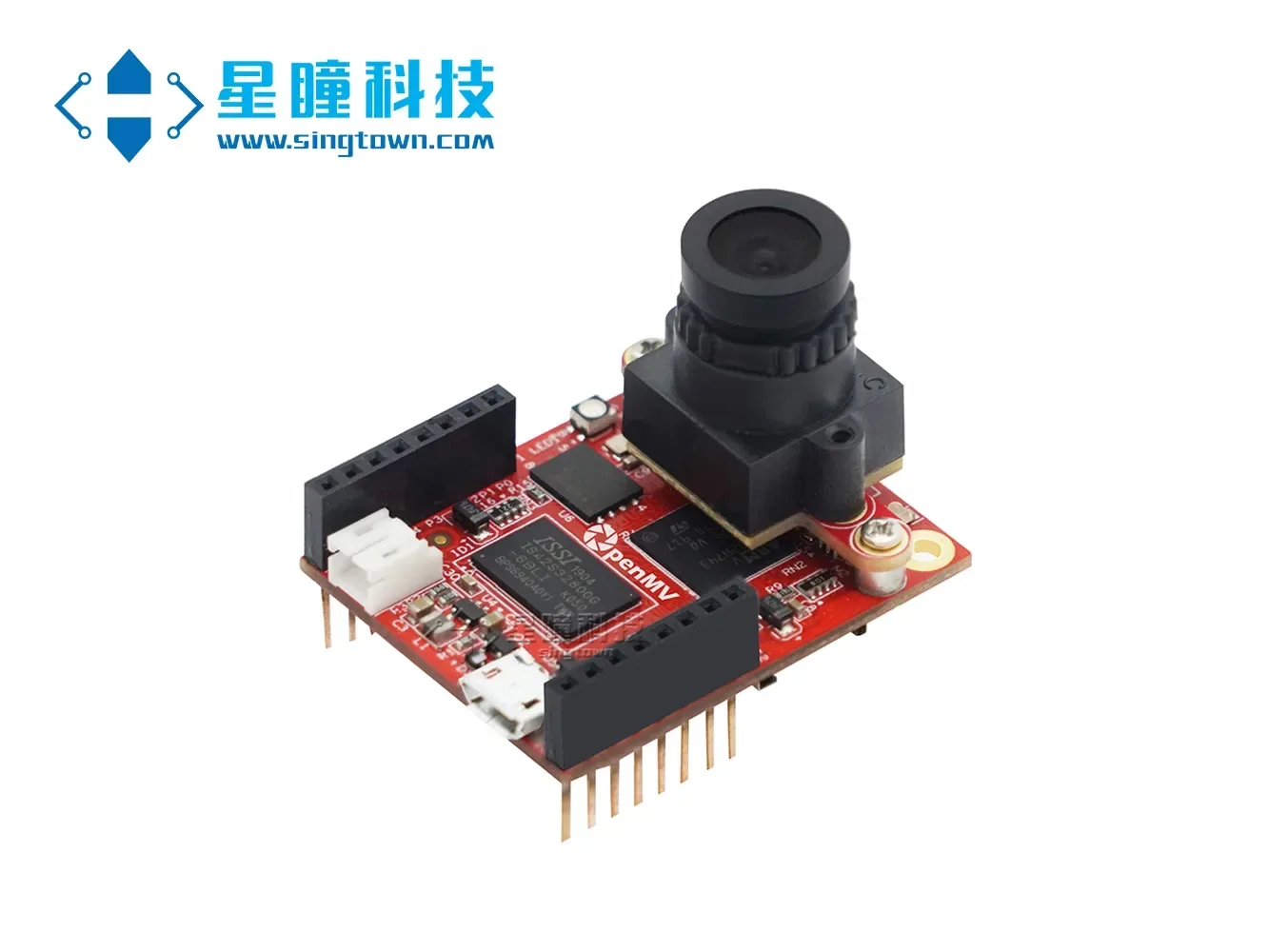
OpenMV4 Plus utilises Edge Impulse to self-train a neural network for mask recognition.
In April last year, our new product, the OpenMV4 H7 Plus, was launched. Today, I will introduce its new feature—using the EdgeImpulse online platform to independently train neural networks for classification and recognition.
In this tutorial, you will utilise machine learning to construct a recognition system that can identify whether a face is wearing a mask through the OpenMV4 H7 Plus intelligent camera, thereby achieving image classification.
EdgeImpulse is a website that provides online training services for neural network models on embedded devices. It is a partner of our OpenMV and also an official partner of STMicroelectronics. Currently, EdgeImpulse is free for our OpenMV users, allowing them to train neural network models online for OpenMV at no cost.
Integrating neural networks into the embedded device OpenMV enables functions such as distinguishing poachers from elephants, performing quality control on factory production lines, and enabling remote-controlled model cars to drive autonomously.
In this tutorial, you will learn how to collect images to build a high-quality dataset, how to apply transfer learning to train a neural network, and how to deploy the system to OpenMV.
Additionally, we have provided video tutorials, which can be viewed by searching for 'OpenMV4 Plus Training Neural Network for Mask Recognition' on the official website.
You can view the entire project content, including all code and models, at the following address: https://book.openmv.cc/project/mask.html
Using EdgeImpulse to train neural network models online for OpenMV primarily involves the following four steps: dataset collection, uploading, training, and deployment.
01. Data Collection
In this tutorial, we will construct a model capable of distinguishing whether a face is wearing a mask. Of course, you may also choose to classify other objects. To enable the operation of the machine learning model, you will need to collect a large number of example images of faces both with and without masks. During training, these example images are used for the model's discrimination exercises.
We need to utilise OpenMV IDE to collect our dataset. The steps for capturing images are as follows:
Create two categories:
Open the 'Tools' menu in the OpenMV IDE, select 'Dataset Editor', click 'New Dataset', then create a new folder and open it. Within the dataset, create two additional folders named 'mask' (for storing photos of faces wearing masks) and 'face' (for storing photos of faces without masks).
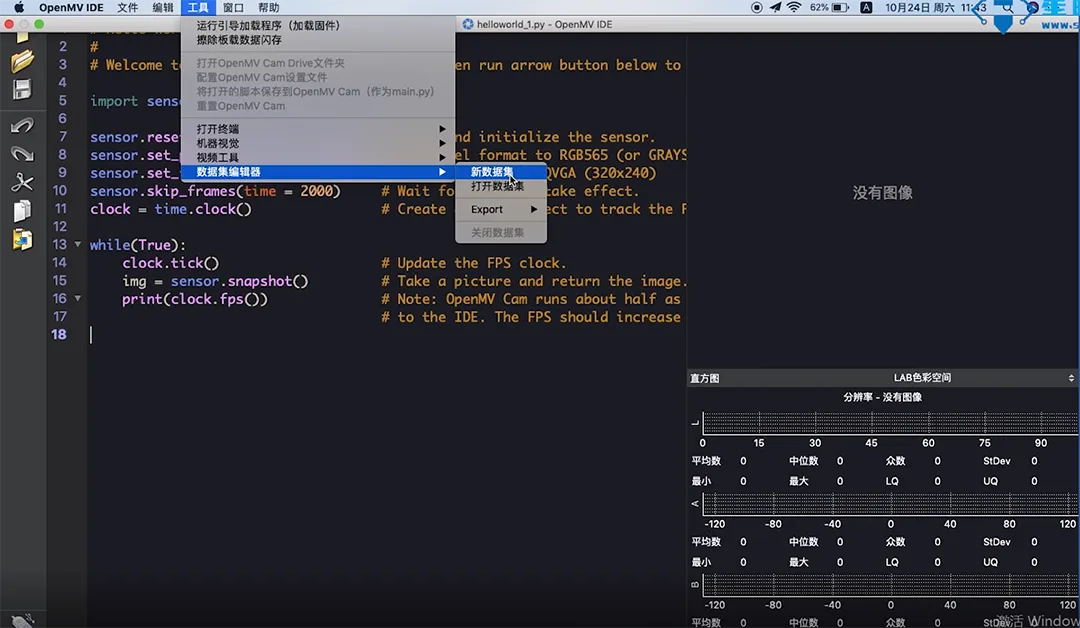
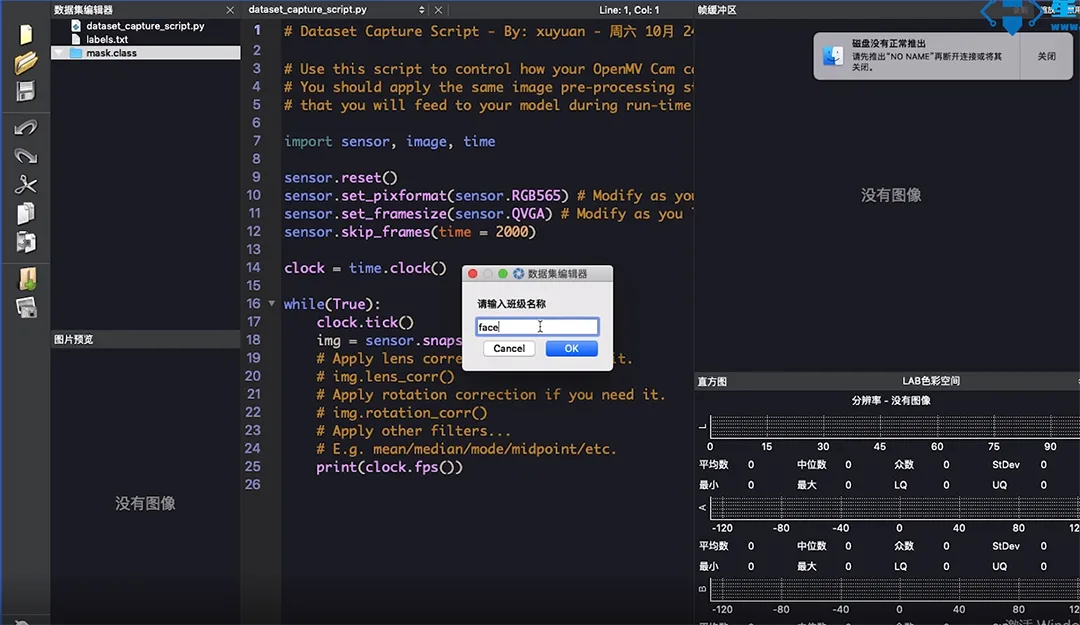
Image acquisition using OpenMV
First, we connect the OpenMV, click 'Connect' in the IDE, then click 'Run'. The real-time image from the OpenMV can be seen in the Framebuffer. By clicking the photo button in the left menu bar, the OpenMV will automatically save this image, which constitutes one data point in the dataset.
First, we need to save the face of a person wearing a mask. Click the photo button, and the IDE will capture an image at the bottom, automatically naming it 00000. The next image will be named 00001, and so forth.
Using OpenMV, collect 200 photographs of faces wearing masks (100 male and 100 female) and 200 photographs of faces without masks (100 male and 100 female).
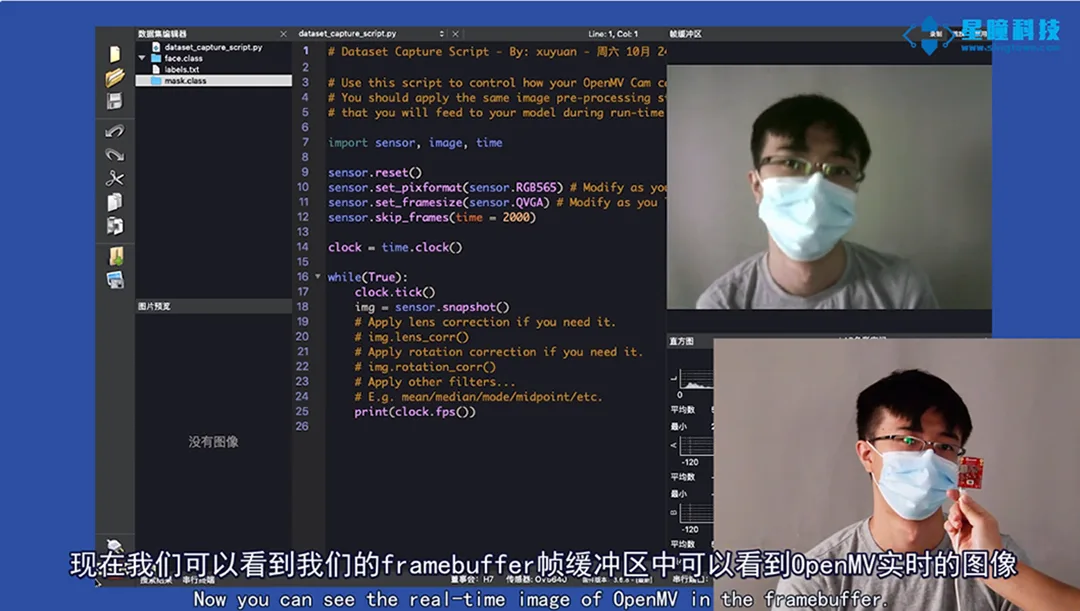
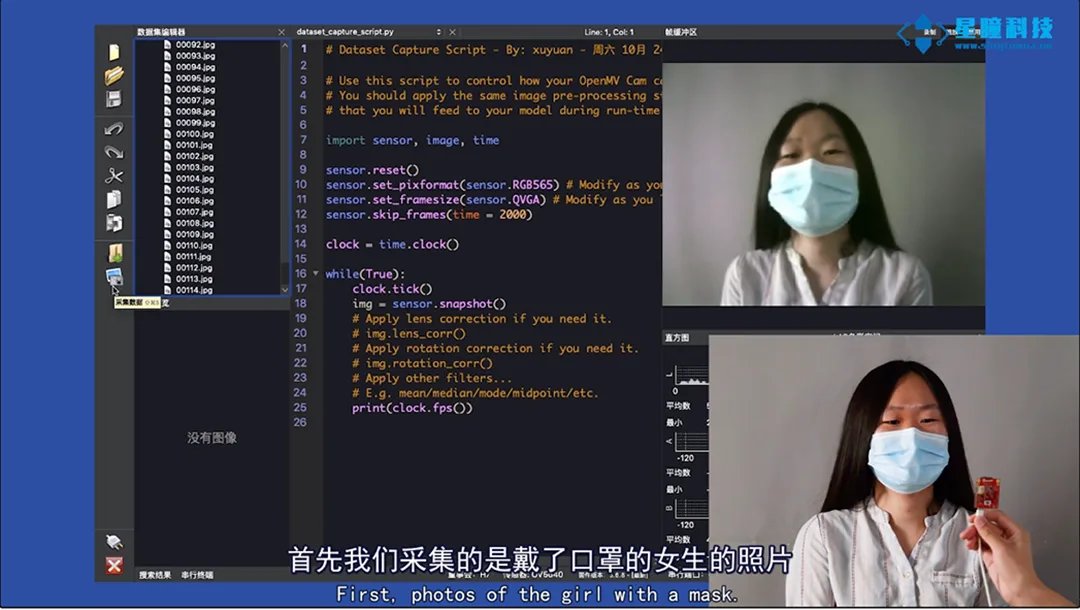
Note: Ensure that photographs are captured from various angles to guarantee the diversity of our training and learning.
If during the collection process you find that a particular image is not captured perfectly, you can right-click on the image and select delete.
02. Upload
After capturing images using OpenMV, you need to register an account and log in to the EdgeImpulse official website (https://edgeimpulse.com/) to begin uploading images. The steps for uploading images are as follows:
Create a new project on EdgeImpulse, click on "keys", select "API Key" and copy the "API Key". Use the API Key to establish connectivity between the OpenMV IDE and Edge Impulse.
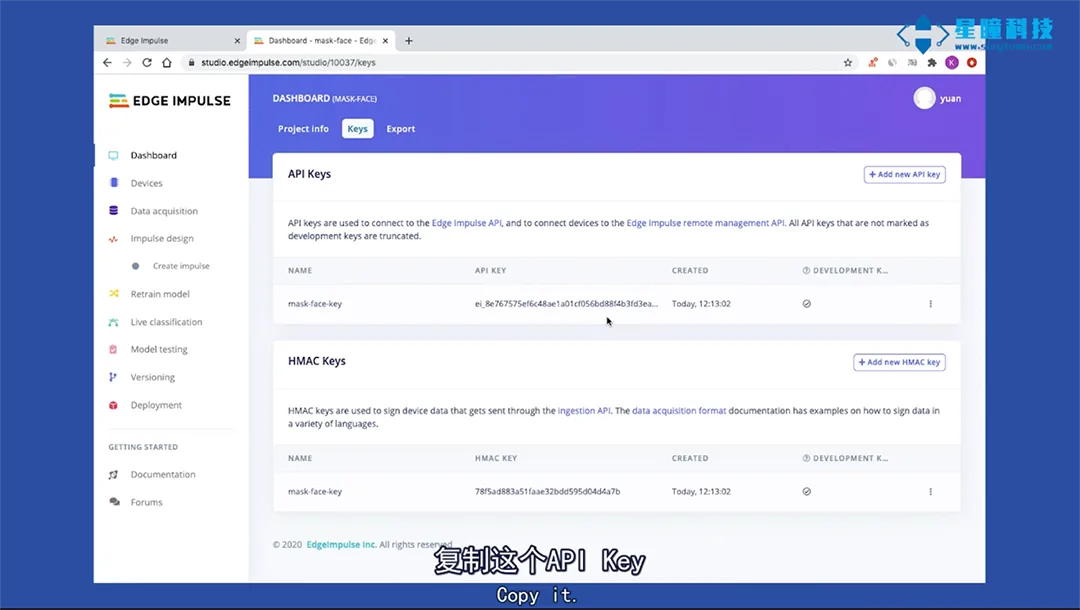
Select "Tools" – "Data Editor" – "Export" – "Upload" – "Upload via API Key" from the menu bar at the top of OpenMV IDE, then copy and upload the "API Key".
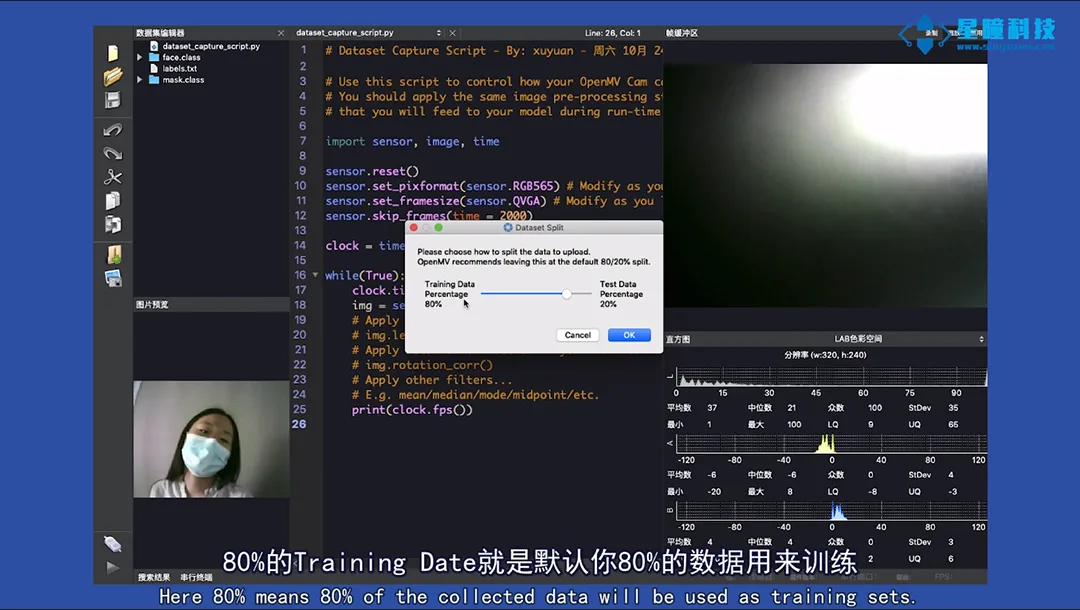
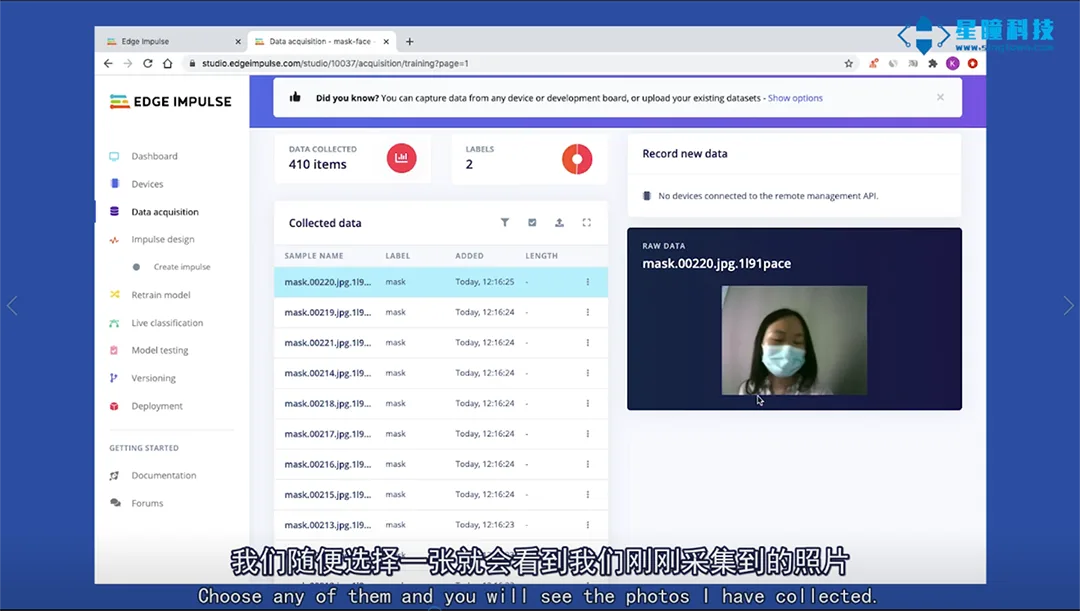
During upload, the data will be automatically divided into training and test sets. We recommend using the default ratio of 80% and 20%. We have collected over 400 facial images in total. The 80% designated as Training Data means that 80% of your data will be used for training by default, while the remaining 20% will serve as the test set.
03. Training Dataset
Once the dataset is prepared, you can proceed to train it on the EdgeImpulse website interface.
Configuration Processing Module:
First, select 'Impulse Design' and configure the processing module:
Set the default image dimensions to "96 x 96".
Select the "Images" module, indicating that we are conducting classification training on images (you can also use EdgeImpulse to classify sounds, videos, etc.).
Select "Transfer Learning (Images)", configure the learning model.
Select 'Save impulse', and a 'Successfully' message indicates successful configuration.
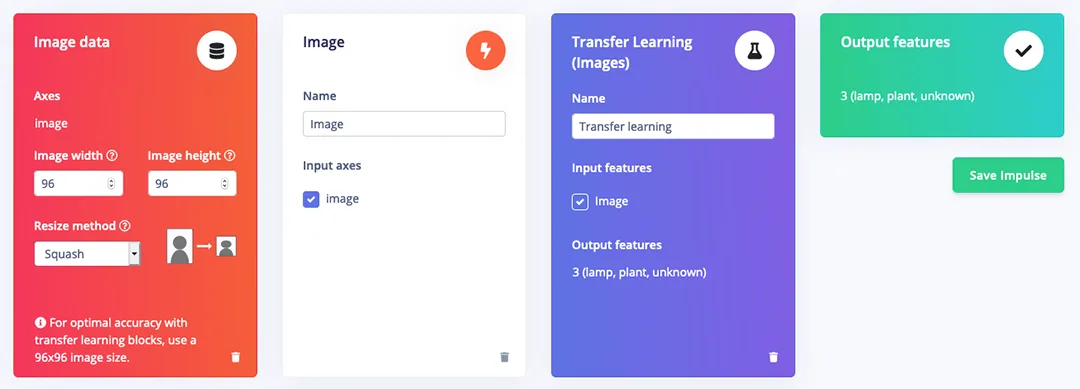
Image Preprocessing:
Click "Image" in the left-hand menu, set the colour format to "RGB", then click "Save".
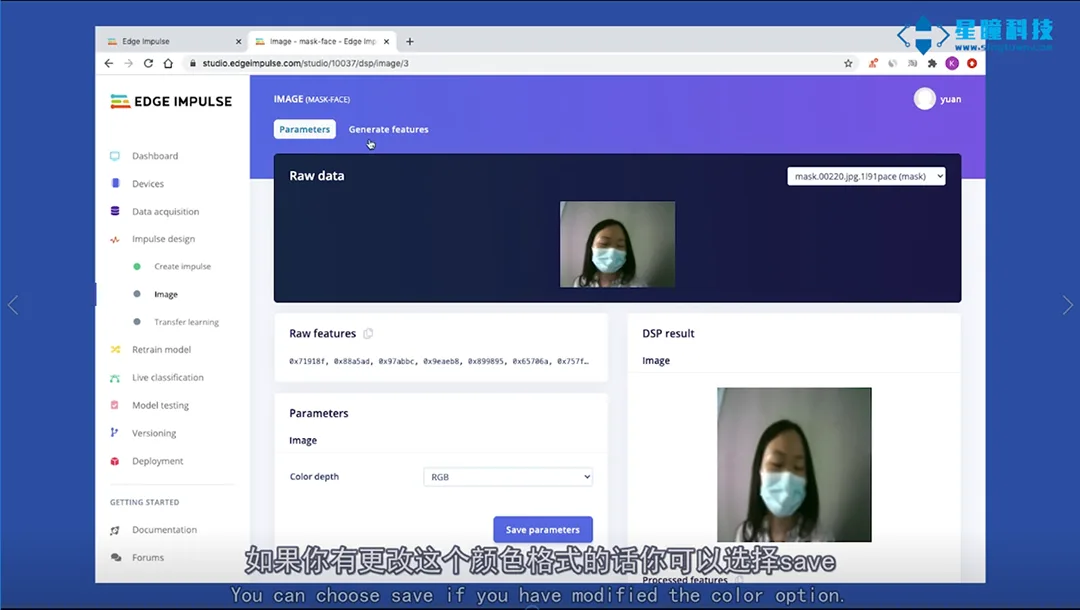
Next, select 'Generate Features' to initiate the process. This will perform image preprocessing on over 400 data entries, and a 3D visualisation of the complete dataset will be displayed on the right.
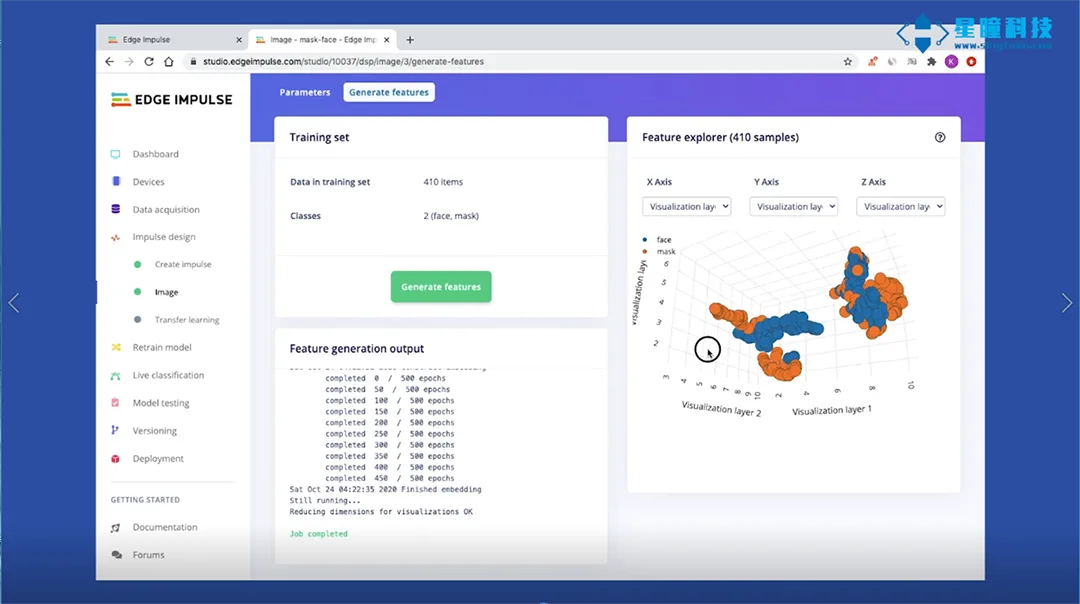
Configure the transfer learning model
Click on "Transfer learning" in the left-hand menu, and select all parameters as default, or modify them according to your requirements.
1. Set the default value for the Number of training cycles to 10.
2. Set the learning rate to 0.0005.
3. You may choose to tick or leave unticked the 'Data augmentation' option.
4. Set the default Minimum confidence rating to 0.8.
Click "Start training". The training process will take approximately four to five minutes.
Upon completion of model training, you may review the accuracy, confusion matrix, and anticipated device performance.
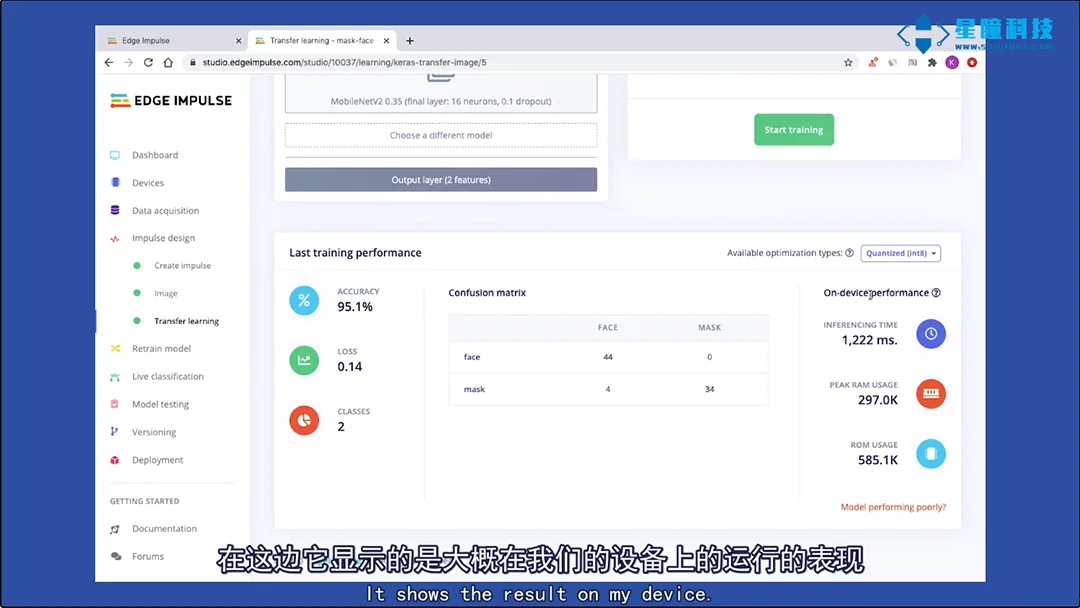
* Test Model:
Upon completion of the training, we will utilise the test data to evaluate the model.
Select "Model testing", tick the checkbox next to "Sample name", and click "Classify selected". The accuracy displayed here has reached 97%, which is quite remarkable for a model with such limited data.
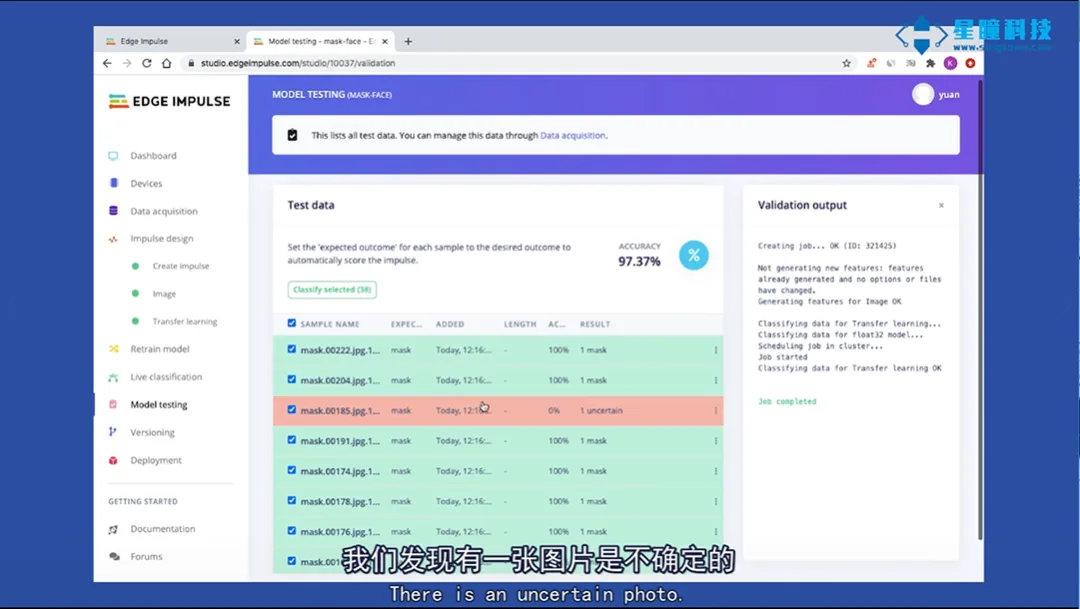
It has been identified that the image displayed in red is uncertain. Click on the three dots to the right of this image, select "Show classification," and you will enter the "Real-time Classification" interface, which contains more details about the file. This interface will help you determine the reason for the image classification error.
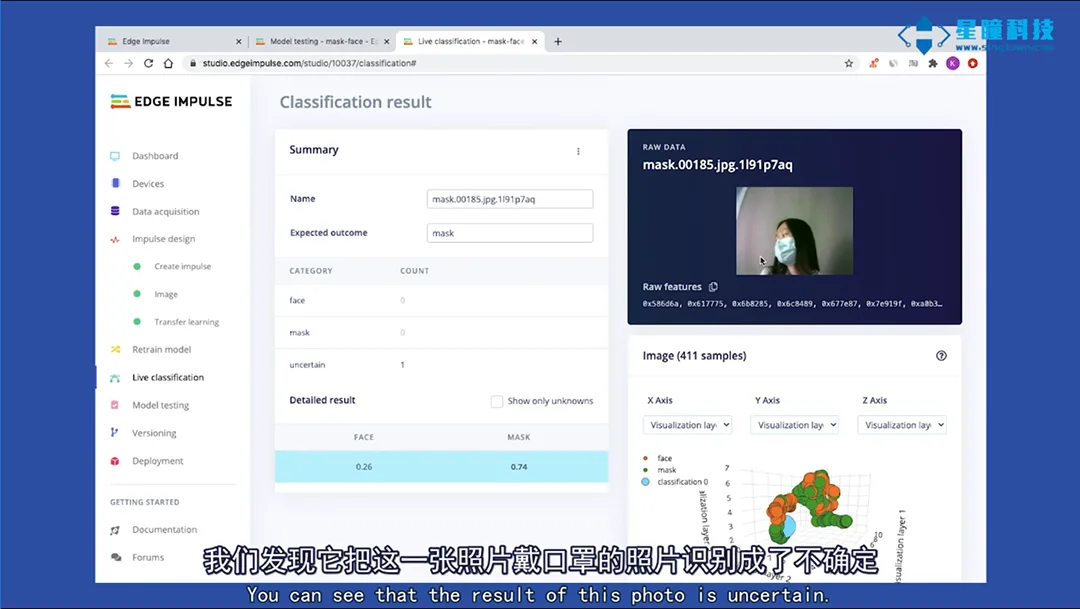
If the data falls outside all known clusters (wearing a mask/not wearing a mask), this may be data that does not match any previously observed classification—possibly due to hair covering a large portion of the face.
04. Running the Model on OpenMV
Having completed the steps of training design, model training, and model validation, you can now export this model to your OpenMV. Select 'OpenMV', choose 'Build' to generate, and it will automatically produce three files.
trained.tflite trained neural network model
Two classification labels (face and mask) in labels.txt
* ei_image_classification.py is the code to be run on OpenMV
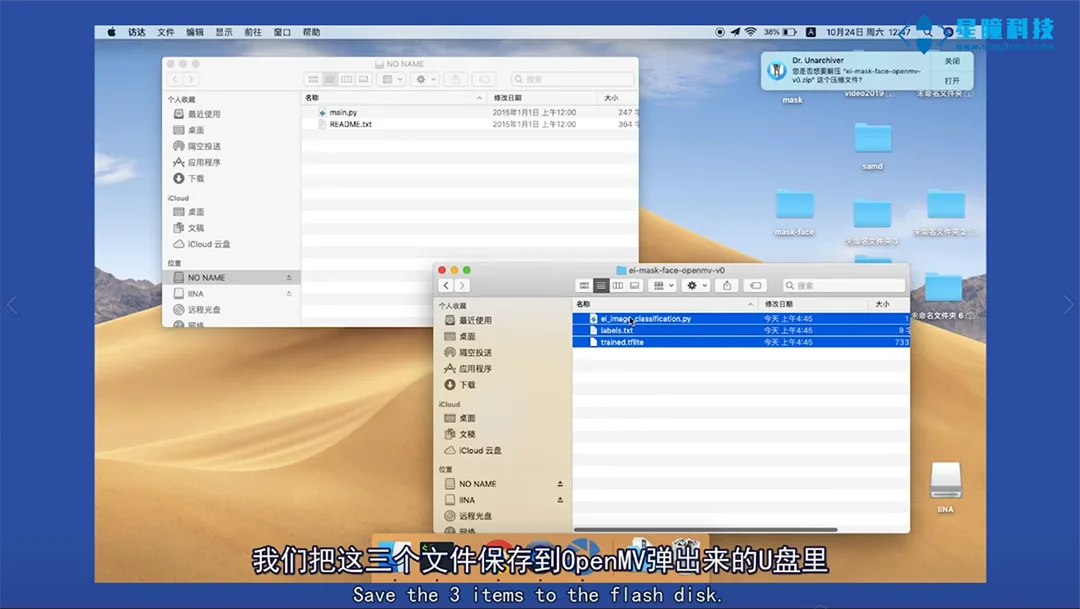
Connect to OpenMV IDE and save these three files to the built-in Flash of OpenMV. Open the ei_image_classification.py file in OpenMV IDE to view the code we just generated in EdgeImpulse. Click Run, and the operation results will be displayed in the serial terminal.
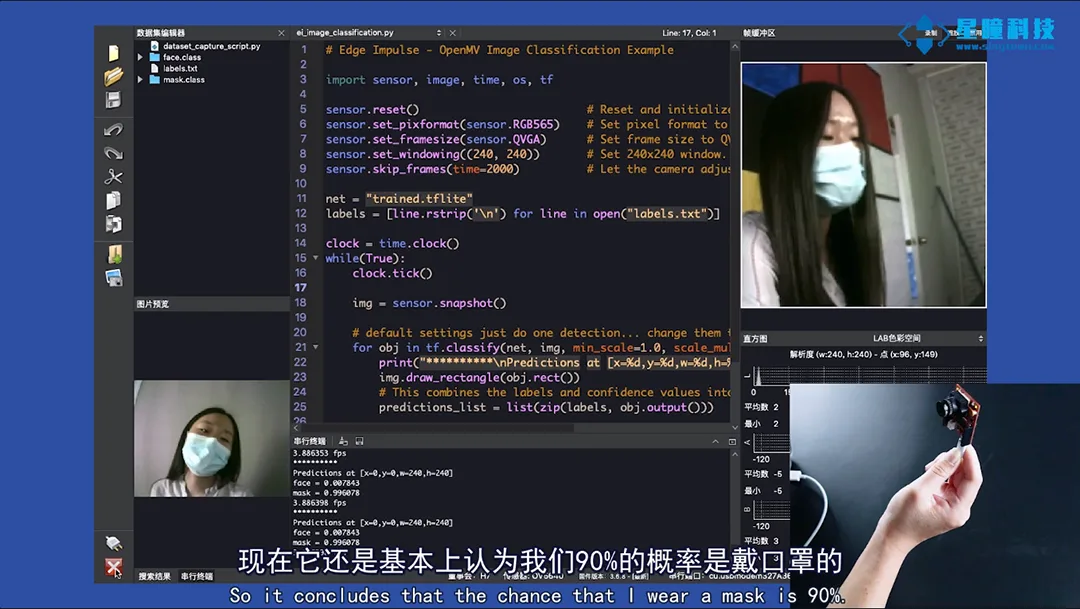
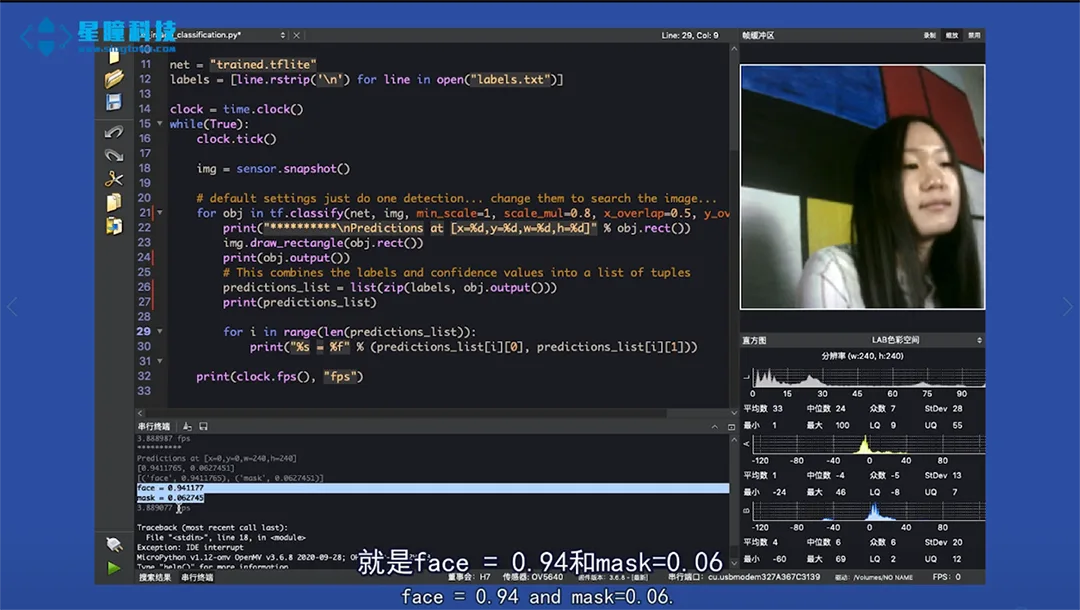
Excellent, you have successfully added the functionality for OpenMV to train neural networks independently.
We look forward to your achievements!
Related articles

AI Sentinel Based on OpenMV: Automatic Alert for Unsecured Key Locations
Automatically detects whether the door of a key location has remained open for an extended period and issues a timely alert.

Personnel crossing the boundary triggers an alarm; OpenMV interprets the “sense of security boundary”
Detects personnel or equipment crossing virtual perimeter lines.

“AI Urban Management Officer” is here: an automated unauthorised street vending detection system built on OpenMV
Automatically identifies illegal street vending activities to support daily urban governance.

Improper storage of gas cylinders? Use OpenMV to automatically trigger hazard alerts
Automatically identifies non-compliant placement positions of gas cylinders to detect potential gas safety hazards in advance.

Did you perform live-line work without wearing insulating gloves? OpenMV issues an immediate alert!
Automatically identifies whether personnel are wearing insulating gloves to assist in safe operations.

Utilise the OpenMV smart camera to identify surface defects on aluminium plates in real time
Online identification of surface defects on aluminium plates, such as scratches and dents, to support quality control.
